

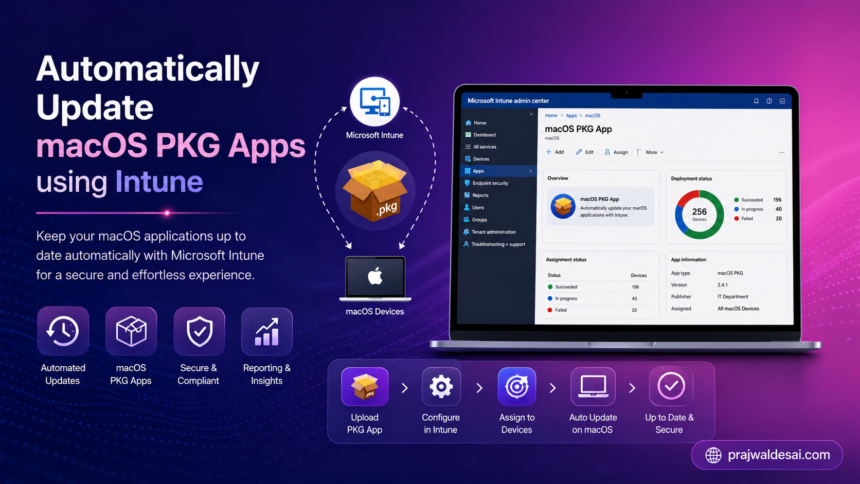
Starting in Intune service release 2606, you can automatically update macOS PKG apps deployed to devices by updating the app policy with a new version of the app. This functionality simplifies the process for administrators to effortlessly keep PKG applications updated to the latest version. I tried out this feature, and let me demonstrate how it works.
In one of the previous guides, I demonstrated deploying the PKG apps with Intune, and it is a pretty straightforward process if you have used it. However, when it came to updating the same app to the next version, there wasn’t an easy method. Although a third-party patching solution could have easily handled this, Intune now makes PKG app updates simpler for administrators.
Honestly speaking, I would describe this process as not completely automated, as it still requires editing the app policy and uploading the updated PKG file. However, it is significantly more efficient than creating a brand new app for each version update. I must say managing Mac devices and software updates is significantly getting better with every new service release of Intune.
How do automatic updates work for PKG apps?
According to Microsoft, when you update an existing app policy with a newer version of a PKG app that shares the same bundle ID, Intune will automatically deploy the update to the device. Since you’re editing and updating the existing app policy with a new app version, users won’t have to select Install or Reinstall in the Company Portal to receive the latest version. If the app retains the same bundle ID, Intune will manage the updates automatically for the next versions as well.
Prerequisites
- Requires Microsoft Intune management agent for macOS version 2606.013 or later.
- Automatic updates apply when both of the following are true:
- You upload an updated version of the app to Intune.
- The user must have already installed the app on the device.
- The new PKG app file that is uploaded must be smaller than 8 GB in size.
Steps to Automatically Update macOS PKG apps using Intune
Now, I will show you the exact steps you need to follow to auto-update already deployed PKG apps to the latest version on macOS devices. I had previously deployed several PKG applications on my devices, and I will be using the Santa app for macOS as an example to evaluate the automatic update feature.
Step 1: Download the updated version of the PKG app
To update the already installed PKG app on your devices, you must have the latest installer of the app. For instance, in my case, the Santa app that was previously deployed is currently at version 2025.8, and I will be upgrading to version 2026.6.
Step 2: Edit the App Policy and upload the new PKG app version
Sign in to the Intune admin center. Go to Apps > macOS and select the app from the list that you wish to update automatically on your enrolled Mac devices. On the Overview page of the app, select Properties and edit the app information as shown in the below image.
In the App Information tab, you see an option ‘Select file to update‘. This is where you upload the newest version of the PKG app file. Once you’ve done that, click OK.
The app that I am updating requires no changes to the pre-install or post-install scripts, and there are even no changes to the app requirements. In your case, you may need to configure these details with some attention because every PKG application is not the same.
So, moving on to the detection rules tab, we see the rules are updated automatically where the app version is configured to 2026.6, which is correct, and the app bundle ID remains unchanged. Click on Review+save to save all the changes.
I haven’t made any changes under Assignments, so all my Mac devices that had the Santa app version 2025.8 should be updated to version 2026.6.
Step 3: Sync Policies via Company Portal
After you upload a new version of an available PKG app to Intune, users do not need to take any action. It installs automatically once it gets the latest policies. You can either wait for the policy refresh cycle to occur on macOS devices or manually trigger the sync. If you are testing the PKG app auto upgrade in your tenant, you can manually sync Intune policies on macOS devices.
Step 4: Verify if the PKG app is updated to the latest version
Now comes the interesting part where you want to actually verify if the PKG app is updated automatically to the new version on the assigned macOS devices. There are multiple ways to do that, which include reviewing the Intune logs, via the company portal app on mac, checking the app version by opening the app itself, or via the device or user installation status.
Intune Admin Center
In the Intune admin center, go to Apps > macOS and select the PKG app that you configured for automatic updates. On the App Overview page, you can see that our PKG app has been automatically updated to the latest version.